
Draw arrows, shapes and freehand
Point things out with arrows, frame them with rectangles and ellipses, draw lines, and sketch or highlight by hand.
⌥⌘A⌥⌘R⌥⌘M⌥⌘I
Arrows, shapes and freehand strokes are the quickest way to say “look here”. Each one uses the current color and stroke width from the bottom of the sidebar, and stays editable after you draw it.
Arrows
- Choose the Arrow tool (A).
- Press where the arrow should start and drag to the spot it should point at.
- Release. The arrowhead appears at the end where you released.
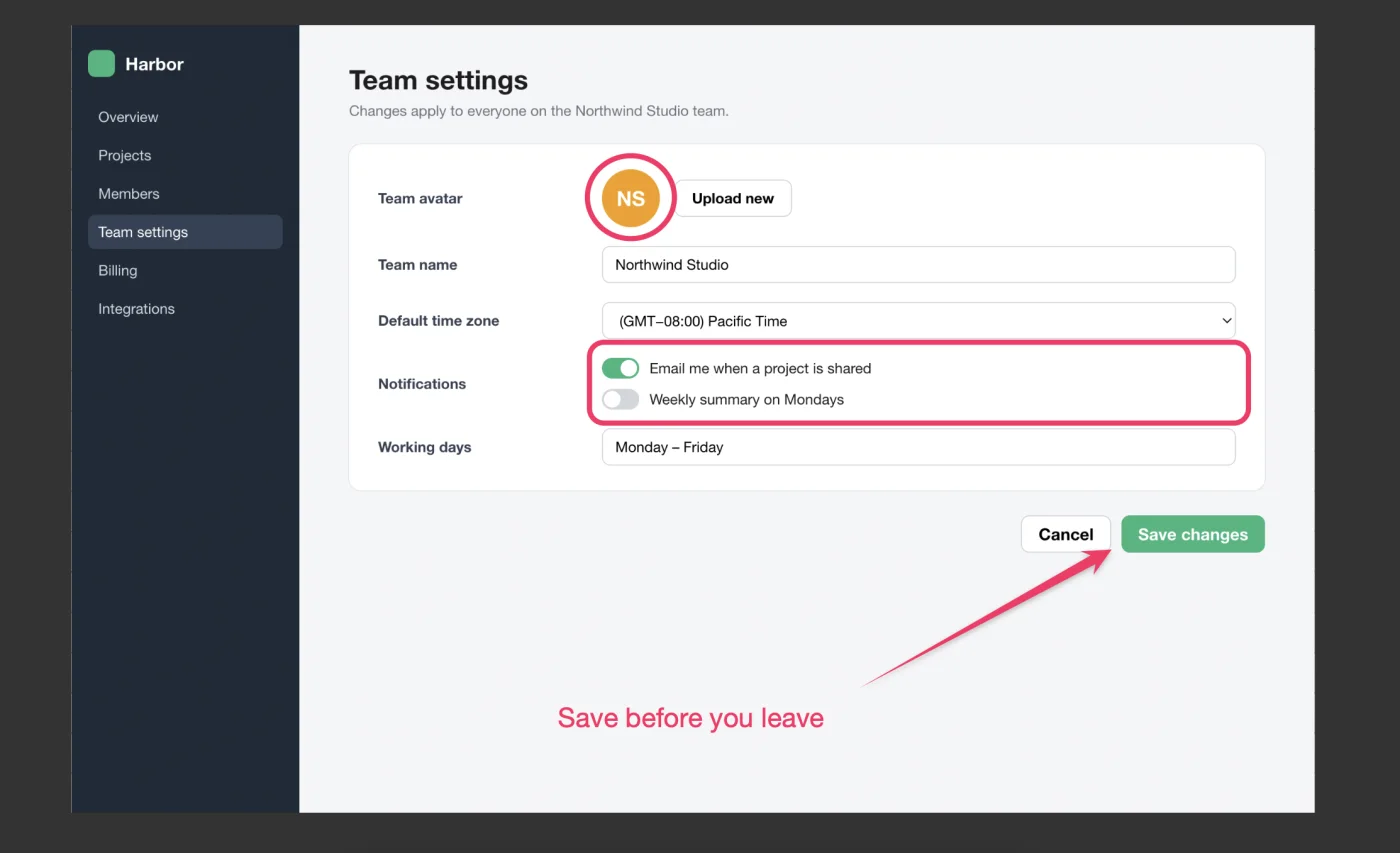
The arrow has a soft shadow so it stands out on busy screenshots. Hold Shift while dragging to keep the arrow at 45° steps.
Rectangles, rounded rectangles, ellipses and lines
The shapes share one sidebar button. Click it to slide out the options:
- Rectangle (R)
- Rounded Rectangle (U)
- Ellipse (O)
- Line (L)
- Outline or Fill
Drag on the canvas to draw. For rectangles and ellipses, you drag from one corner of the shape to the opposite corner. For a line, you drag from one end to the other.
- Hold Shift to draw a square, a circle or a line at 45° steps.
- Outline draws the shape’s edge in the current stroke width. Fill paints the whole shape in the current color. Fill applies to rectangles, rounded rectangles and ellipses.
To change a shape you already drew, select it with the Select tool and choose another color, width, Outline or Fill.
Pen and highlighter
The Pen and the Highlighter share one sidebar button.
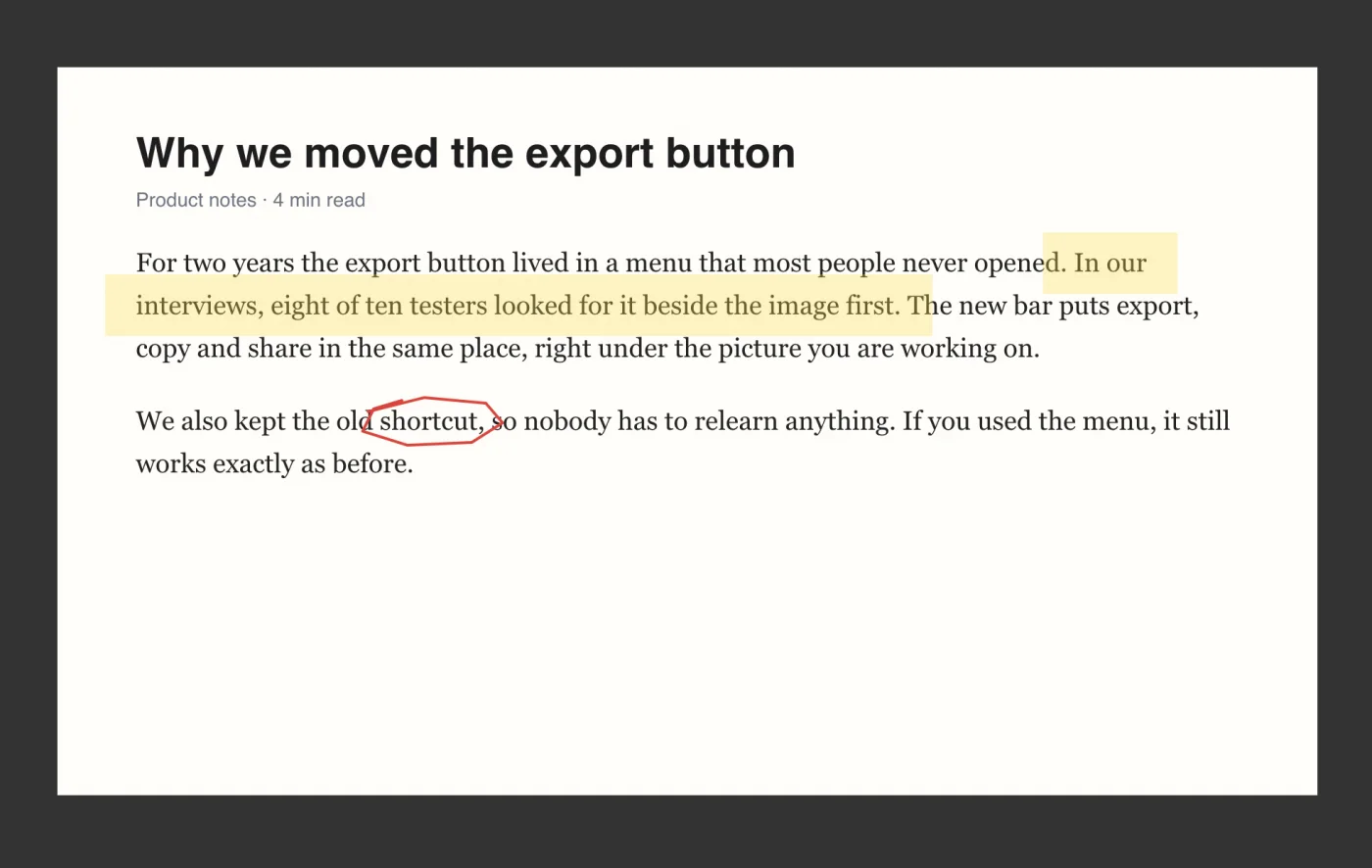
- Pen (M) draws a solid freehand stroke wherever you drag.
- Highlighter (I) draws a broad, see-through stroke, like a marker over printed text. Its stroke is four times as wide as the stroke width you set.
Freehand strokes follow the pointer exactly. Shift doesn’t straighten them.
Change what you drew
Choose the Select tool (V) and click the stroke or the shape’s edge.
- Drag to move it.
- Drag the white square at its bottom-right corner to resize it.
- Pick a new color or stroke width in the sidebar.
- Press Delete to remove it.
More about selecting and styling: Select, move and style markup.
Good to know
- An outlined shape is selected by its edge, not its middle, so you can still click things inside it. A filled shape is selected anywhere inside.
- Text under the highlighter or under a thin outline can still be selected and copied. Text under a filled shape, a thick arrow or a pen stroke counts as hidden. See Copy text from images and PDFs.
- When you export a PDF, arrows, lines, shapes and freehand strokes become standard PDF annotations that other PDF apps can edit. See Work with PDFs.