Get started with Snix
Take your first capture, allow screen recording, and find your way around the editor window.
⌃⌘5

Snix is a screenshot app for the Mac. Capture any part of your screen, point at what matters with arrows, text and mosaic, then drag the result straight into a message.
For macOS 15 or later. English, 简体中文, 한국어.
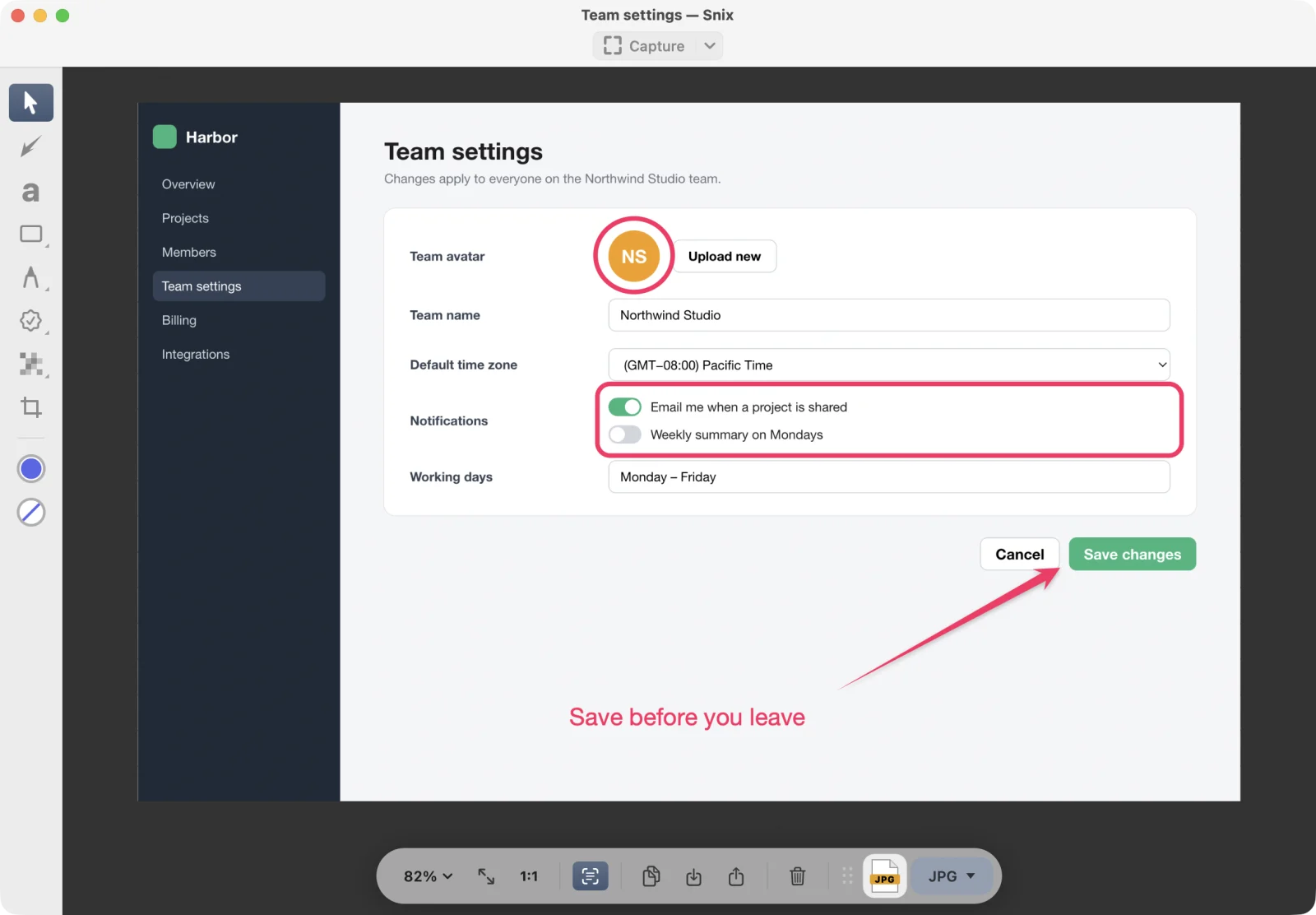

The first four shortcuts work from any app and can be changed in Settings; the last two work while Snix is in front. Captures keep every Retina pixel.
| Capture | Shortcut | What you get |
|---|---|---|
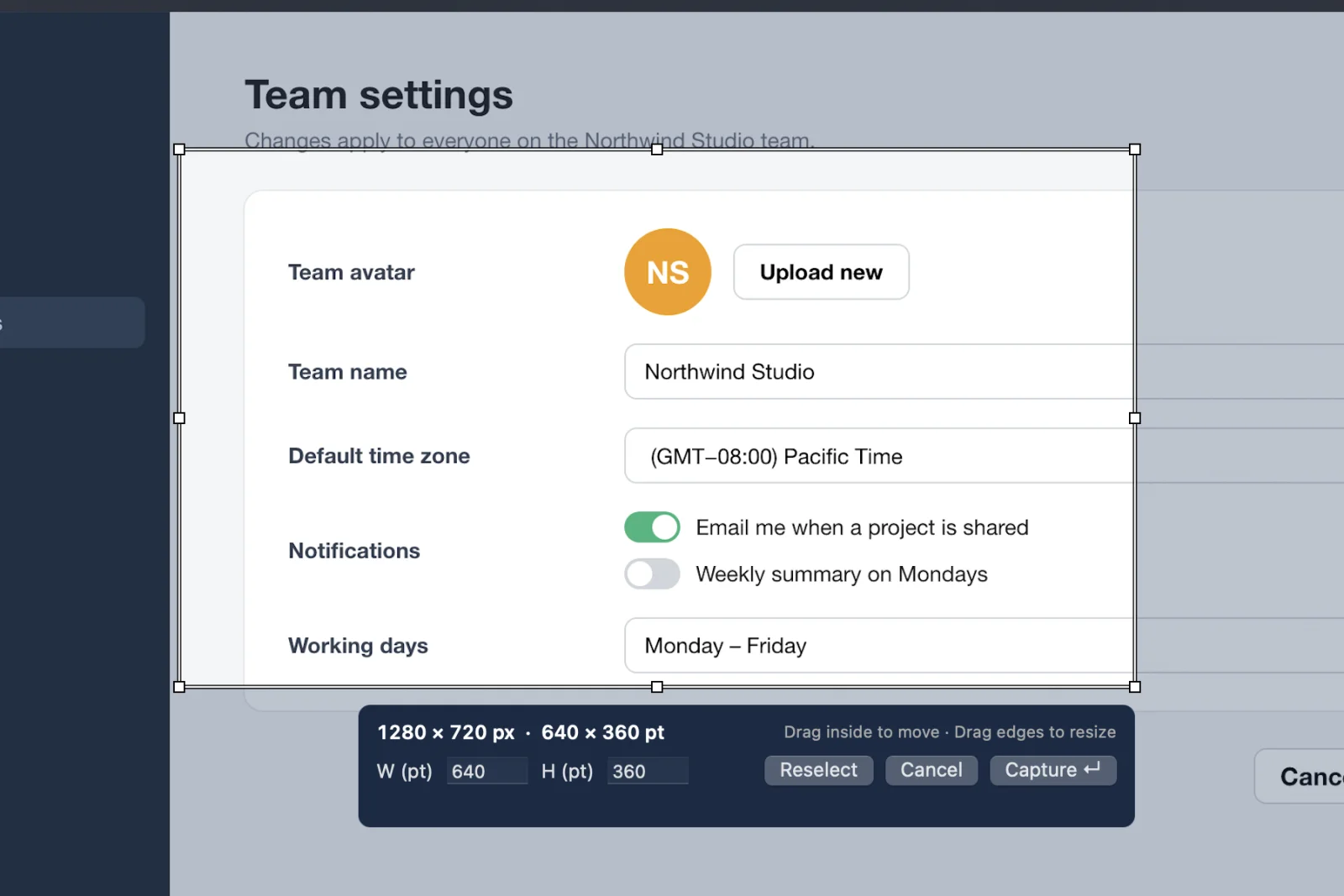
| Region | ⌃⌘5 | Drag a frame, then fine-tune it with eight handles or type an exact width and height. Press Space to pick a window instead. |
| Full screen | ⌃⌘6 | With more than one display, every screen shows its name and size; click the one you want. |
| Window | ⌃⌘W | One window, cut cleanly from whatever sits behind it. |
| Last region | ⌃⌥⌘5 | The same frame again, for a before and after. |
| Menu | ⇧⌘U | From the menu bar icon or the Capture menu: a countdown while you open the menu, then just the menu and its title. |
| Timed | ⌃⇧⌘5 | A region after a countdown, for hover states and tooltips that vanish on a click. |
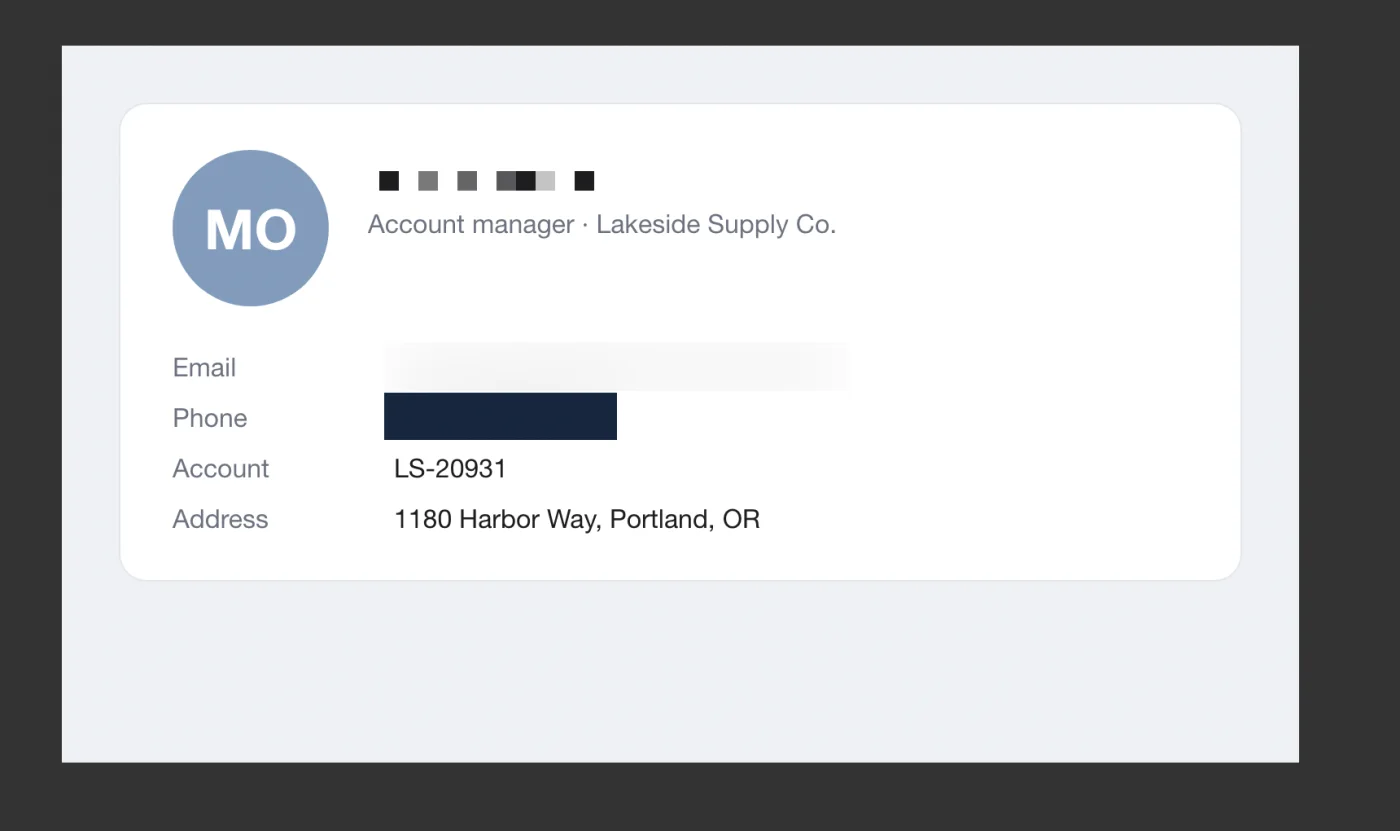
Drag over anything private and choose how it disappears. When you export, drag or share, the cover is painted into the pixels, so what was under it never leaves your Mac. Try it: drag across the message.

Copy text out of any screenshot.
Drag across the words and press ⌘C. Text is read by Apple’s Vision on this Mac; nothing is uploaded.
Hand back PDFs others can still edit.
Markup goes out as standard PDF annotations that Preview and Acrobat can move, change or delete.
Put a summary of every note up front.
A page-by-page list before the document, each entry linked to its place. A4 or US Letter, by your region.
Count down before grabbing a menu.
A card in the middle of the screen counts the seconds, and it never shows up in the shot.
Up to 77% smaller
Every JPEG Snix writes goes through Jpix, our own optimizer. It retunes the compression block by block for what your eye can actually see, so the picture looks almost identical to the original while the file shrinks by up to 77% in our tests.
It is not just for screenshots. Open a photo you already have, export it as JPEG, and keep the lighter copy for email, the web or your archive. For images with transparency, choose WebP: it keeps the clear areas and lands at about half the size of a JPEG.

Snix reads images saved by Skitch 2.9 and turns their arrows, text and shapes back into things you can move and change.

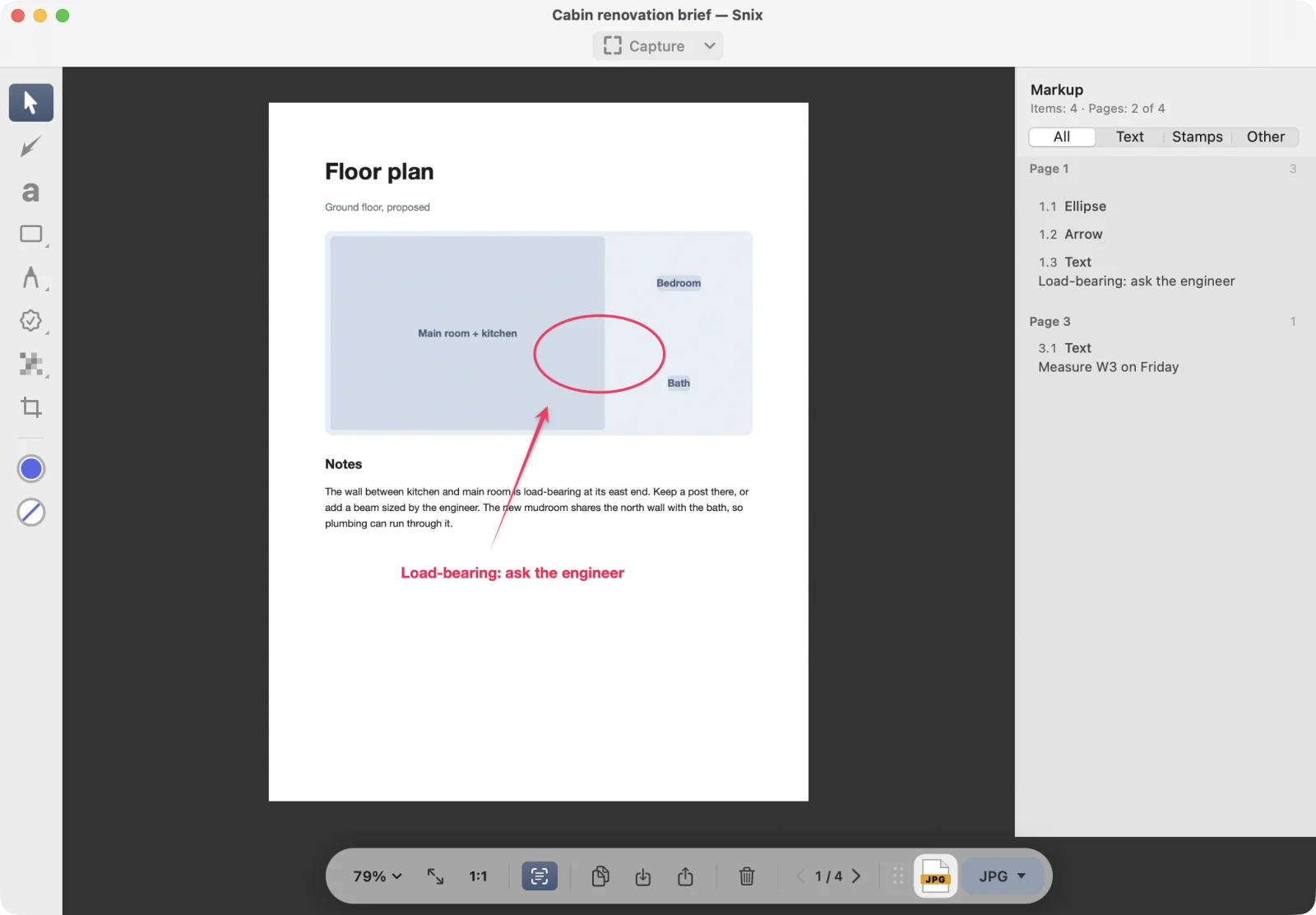

Drop a PDF on Snix and the same tools work on every page. Swipe or scroll to turn pages; zoomed in, you read to the edge first.
Take your first capture, allow screen recording, and find your way around the editor window.
Start any kind of capture from the keyboard, the Capture menu, the menu bar or the capture toolbar, and change the shortcuts.
Make ⇧⌘3, ⇧⌘4 and ⇧⌘5 open your captures in Snix, and switch back to the macOS screenshot tool whenever you like.
Select an exact area of the screen, adjust it with handles or typed sizes, and capture it again later in one step.
Capture a single window with clean transparent corners, or a whole display, including choosing one of several displays.
Capture an open menu with its menu bar title, or start a region capture after a countdown so you can set up the screen first.
Pick tools from the sidebar or keyboard, set color and size, and move, resize, copy or delete any annotation.
Point things out with arrows, frame them with rectangles and ellipses, draw lines, and sketch or highlight by hand.
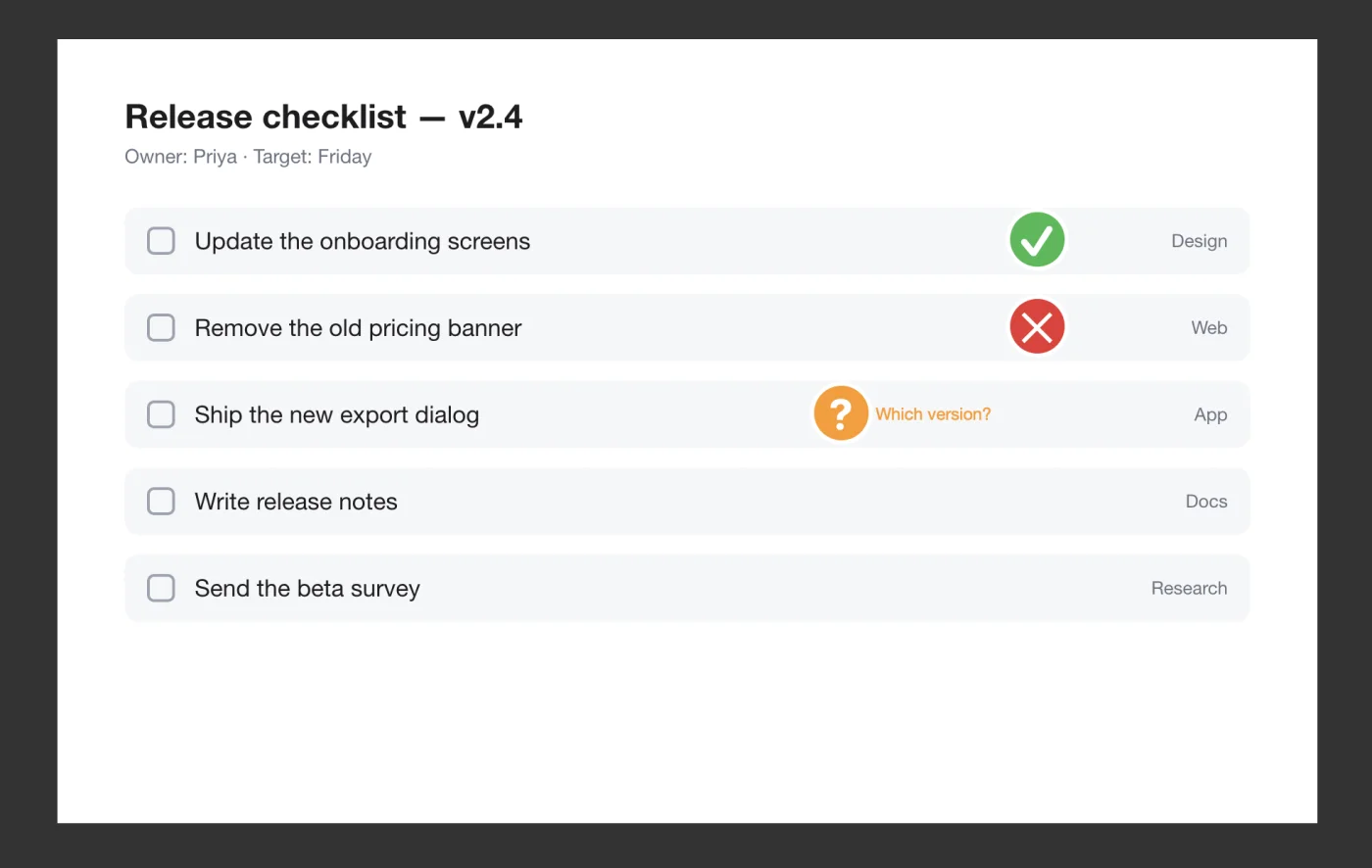
Type labels right on the image, edit them in place, and mark items with check, cross, question, important or star stamps.
20 guides, from your first capture to PDF summaries. See them all
No. Captures, projects and text recognition all stay on your Mac. Snix has no account and no upload service of its own; a file only leaves when you drag, export or share it.
Any Mac with macOS 15 or later. Snix is a universal app, native on Apple silicon and on Intel, with no Rosetta needed.
Yes. On first launch Snix offers to take over ⇧⌘3, ⇧⌘4 and ⇧⌘5, and shows you the three switches to turn off in Keyboard Settings. Every capture then opens in the editor.
Images saved by Skitch 2.9 open with their arrows, text and shapes editable again. Snix saves them as .snix projects and never writes the old format. Older Skitch formats are not supported.
Not in what you send. Exported images and PDFs, drags and shares are flattened, so the covered text is gone from the file. A .snix project keeps the original under each cover so you can keep editing; send an export, not the project.
English, Simplified Chinese and Korean. It follows your Mac’s language, or pick one in Settings › Language.
Get Snix from the Mac App Store. On first launch it offers your familiar shortcuts, and every capture opens straight in the editor.
Download on the Mac App Store
Take Screenshots with the Keys You Already Know
⇧⌘3, ⇧⌘4 and ⇧⌘5 work just as in macOS, except each capture opens straight in Snix’s editor.