
Add text and stamps
Type labels right on the image, edit them in place, and mark items with check, cross, question, important or star stamps.
⌥⌘T⌥⌘P
Text labels explain what an arrow points at. Stamps mark an item at a glance: done, wrong, unclear, important or a favorite. Both use the current color and font size.
Add text
- Choose the Text tool (T).
- Click where the text should start.
- Type. The text appears in the current color and font size as you type, exactly as it will be drawn.
- Press Return to finish, or click somewhere else on the canvas.
To start a new line inside the same label, press Shift-Return or Option-Return. To throw away what you’re typing, press Esc.
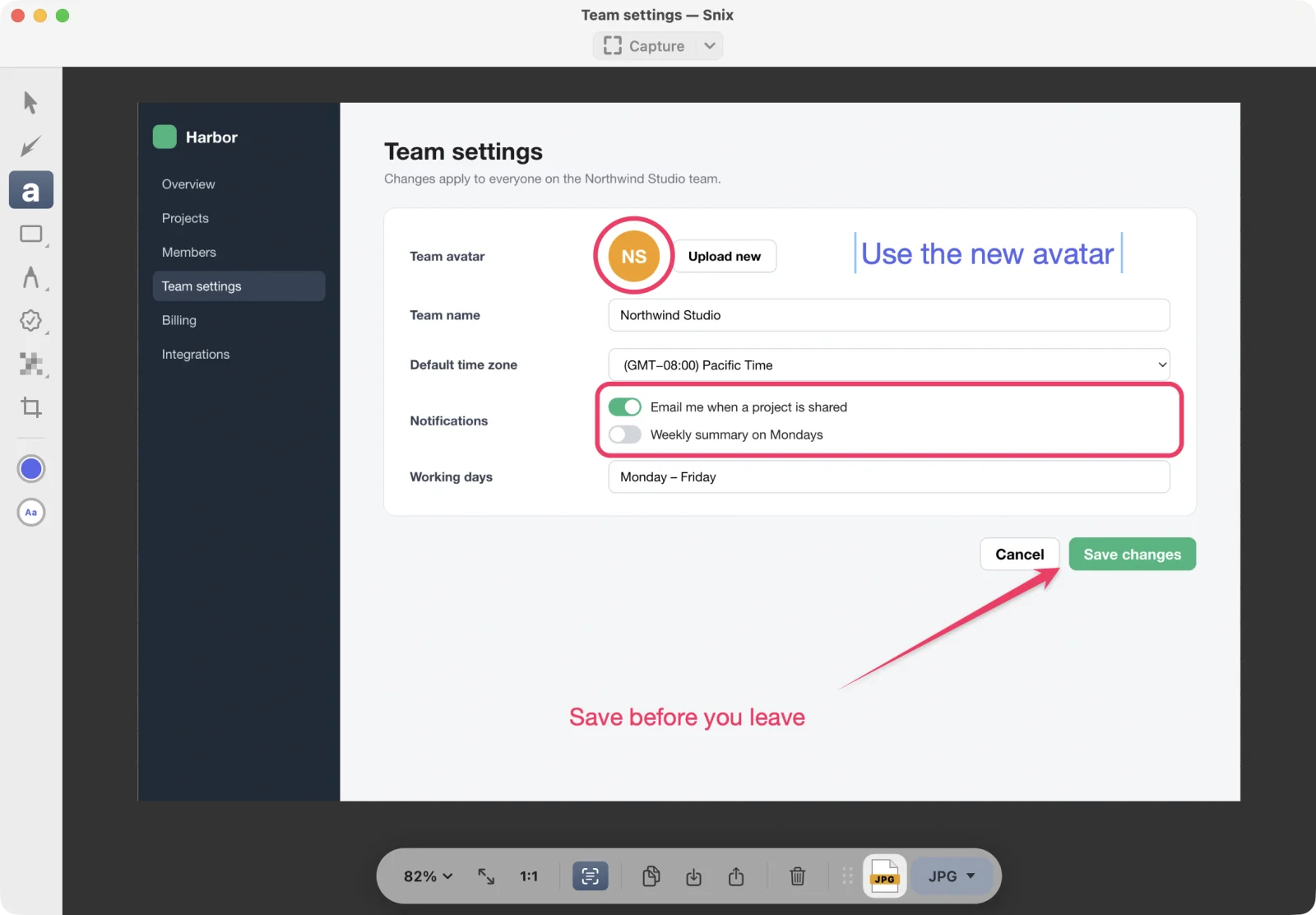
Edit or remove text
- With the Select tool, double-click a label to edit it in place.
- With the Text tool, click an existing label to edit it.
- Delete all the characters and press Return to remove the label. You can also select it and press Delete.
Change the font size and color
Click the size circle at the bottom of the sidebar and choose 18, 24, 32, 48, 64 or 96 points. Click the color circle for another color. If a label is selected, the change applies to it. If you are typing, the text being typed changes right away.
Text uses Helvetica Neue. Chinese and Korean characters are drawn with the system’s matching fonts, so they stay sharp and readable.
Add a stamp
-
Click the Stamp button in the sidebar. The sidebar slides over to show the five stamps. (Pressing P chooses the Stamp tool with the stamp you used last.)
-
Choose one:
Stamp Name ✓ Approved Stamp ✕ Rejected Stamp ? Question Stamp ! Important Stamp ★ Star Stamp -
Click on the canvas wherever you want the stamp. Each click places one.
A stamp is a filled circle in the current color with a white symbol and a white ring. Its size follows the font size.
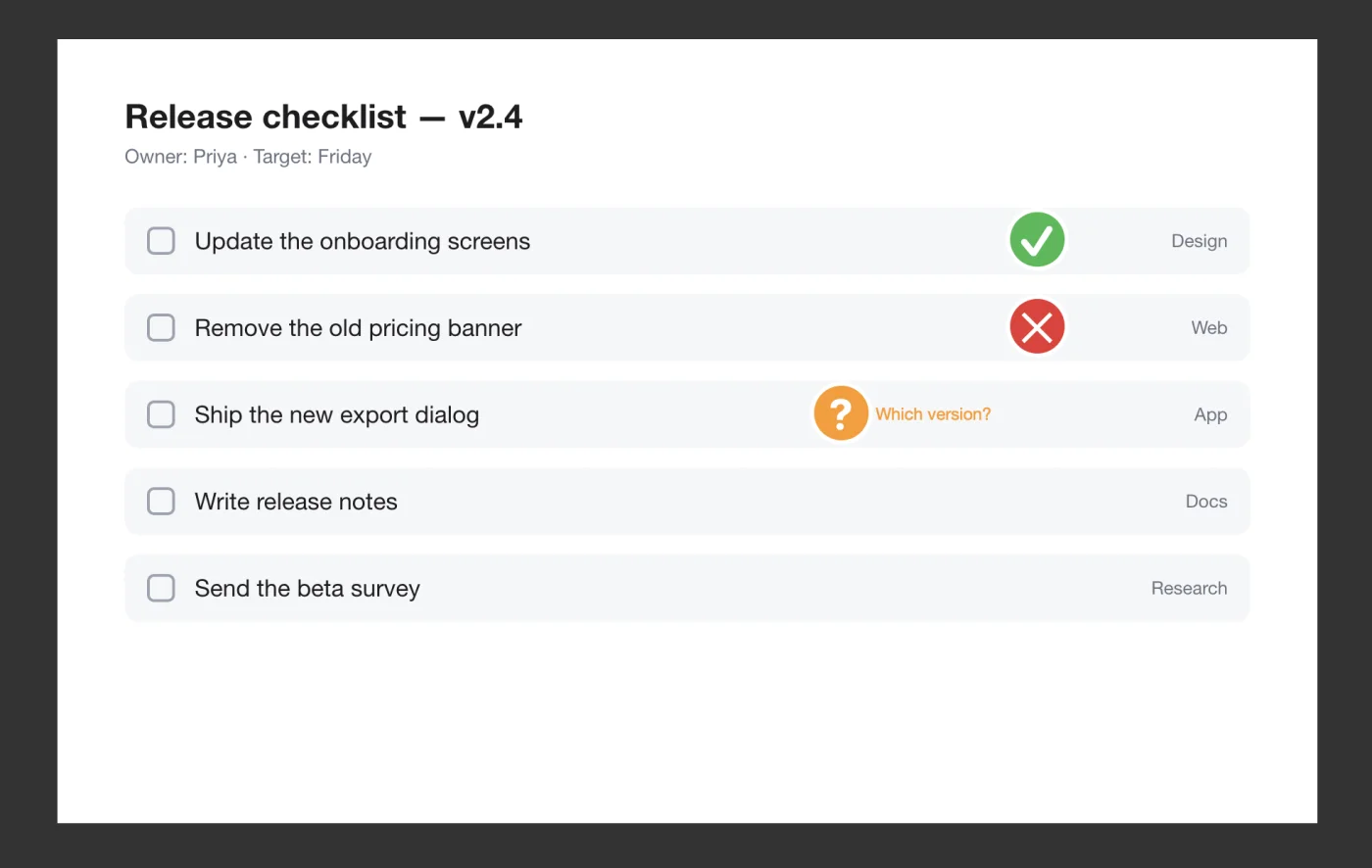
Give a stamp a label
- Choose the Select tool (V).
- Double-click the stamp. The Stamp Label window opens.
- Type a short note and click OK.
The label appears beside the stamp. To change the symbol of a stamp you already placed, select it and choose another stamp in the sidebar.
Good to know
- Labels don’t wrap automatically. Lines break only where you press Shift-Return or Option-Return.
- Text labels and stamps stay upright when you rotate or flip the page.
- The markup list shows every label and stamp with its text, page by page. See Markup list and summary.
- When you export a PDF, text labels become text box annotations and stamps become stamp annotations, both editable in other PDF apps. See Work with PDFs.