
Export, copy, drag and share
Get your marked-up image out of Snix by dragging the file icon, copying, sharing or exporting in the format and quality you need.
⌘E⇧⌘C
When the markup is done, the image needs to go somewhere. Snix gives you four ways out. Dragging is usually the fastest: grab the file icon and drop it into a chat, an email or a folder.
Drag the file icon
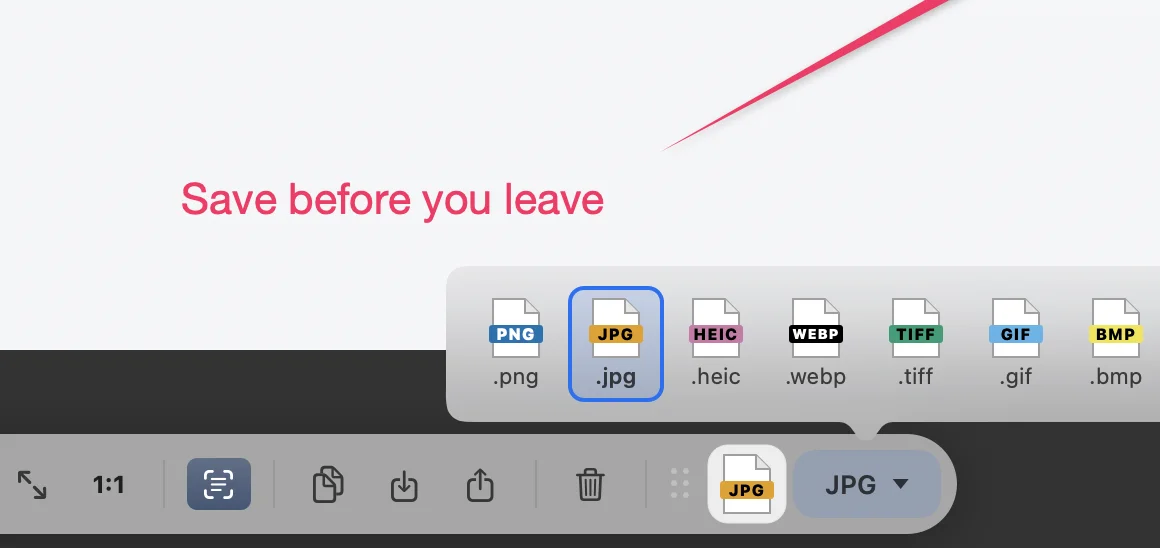
The file icon sits at the right end of the bottom bar, on a tab that rises above it. Its colored label shows the current format, such as JPG.
- Drag the file icon into another app or a Finder folder.
- Snix creates the file as you drop it, named after the document’s title.
To change the format, click the ▾ next to the icon and choose PNG, JPG, HEIC, WEBP, TIFF, GIF, BMP or PDF. Snix remembers your choice in every window. Clicking the icon itself opens the Export panel.
Copy the image
Click Copy Image on the bottom bar, or choose Edit › Copy Entire Image (⇧⌘C). Snix copies the current page with its markup as a PNG. Paste it into any app.
Share
Click Share on the bottom bar, or choose File › Share…. Pick a destination from the macOS share menu. Snix shares a file in the format chosen on the file icon.
Export a file
- Choose File › Export… (⌘E), or click Export… on the bottom bar.
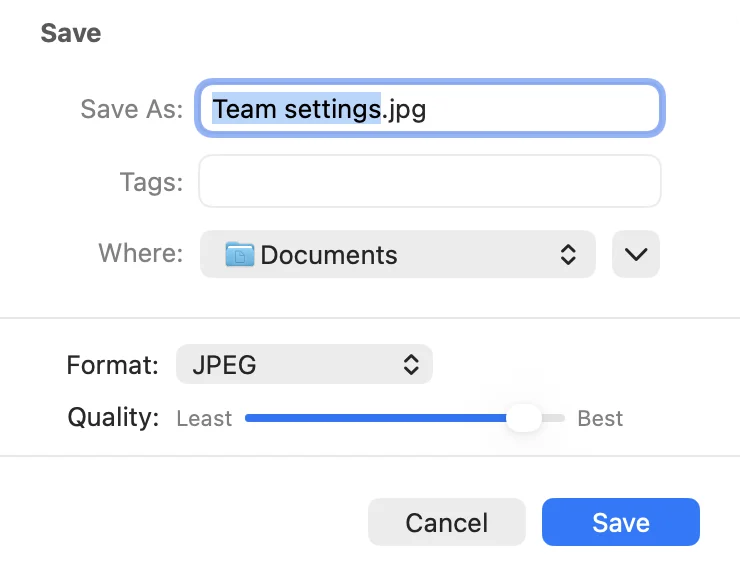
- Choose a Format: PNG, JPEG, HEIC, WebP, TIFF, GIF, BMP or PDF (All Pages). The panel starts with the format chosen on the file icon.
- Set the options for that format (see below).
- Choose a name and a folder, then click Save.
The bottom bar confirms with “Exported:” and the file name. For JPEG, it also says how much smaller Snix made the file.
Choose a format
| Format | Good for | Notes |
|---|---|---|
| JPEG | Screenshots for chat and email | The default. Optimized to stay small. Transparent areas become white. |
| PNG | Exact pixels | No quality loss. |
| HEIC | Small files | Quality slider and file size shown. |
| WebP | Small files for the web | Keeps transparency. Quality slider, with Lossless at the right end. File size shown. |
| TIFF, GIF, BMP | Apps that need them | |
| PDF (All Pages) | Documents | Every page in one file. See Work with PDFs. |
Image formats export the current page. PDF exports all pages.
Set the quality
JPEG, HEIC and WebP have a Quality slider from Least to Best. For WebP, the right end is Lossless. The slider starts at 92 percent.
- Snix remembers the setting for each format separately.
- Dragging the file icon and sharing use the same setting.
- For HEIC and WebP, File Size shows how big the file will be, and updates when you move the slider.
Make existing photos smaller
Every JPEG Snix writes goes through Jpix, the JPEG optimizer built into Snix. It tunes the compression for what your eye can see, so the file comes out much smaller and the picture looks almost the same. In our tests, files came out up to 77% smaller than with the standard macOS encoder at the same quality. That works for photos too, not only screenshots.
- Open the photo in Snix: choose File › Open Image, PDF, or Project… (⌘O), or drag it onto Snix.
- Choose File › Export… (⌘E) and set Format to JPEG.
- Click Save. The bottom bar says how much smaller Snix made the file.
A photo that was already compressed hard may not get much smaller. Keep the original until you have checked the copy.
Good to know
- Exports are always flat images or PDFs. To keep annotations editable for later, save a project. See Save projects and use windows.
- Exported images are Hi-Res. A Retina capture is marked at 144 dpi, so it shows at its original size in other apps. See Hi-Res and Retina images.
- File names come from the document title. A capture is titled “Screenshot” followed by the date and time.
- File › Print… (⌘P) prints every page with its markup.