
Markup list and summary
See every annotation page by page, jump to any of them, and export a PDF that opens with a linked summary of all the markup.
⇧⌘L
When a document has many pages and many comments, the markup list keeps track of them. It lists every annotation, page by page, beside the canvas. When you export a PDF, you can put the same list at the front as a summary, with each entry linked to its place.
Show the markup list
Choose View › Markup List (⇧⌘L). The list opens on the right side of the window. It opens by itself when you open a PDF. Choose the command again to hide it.
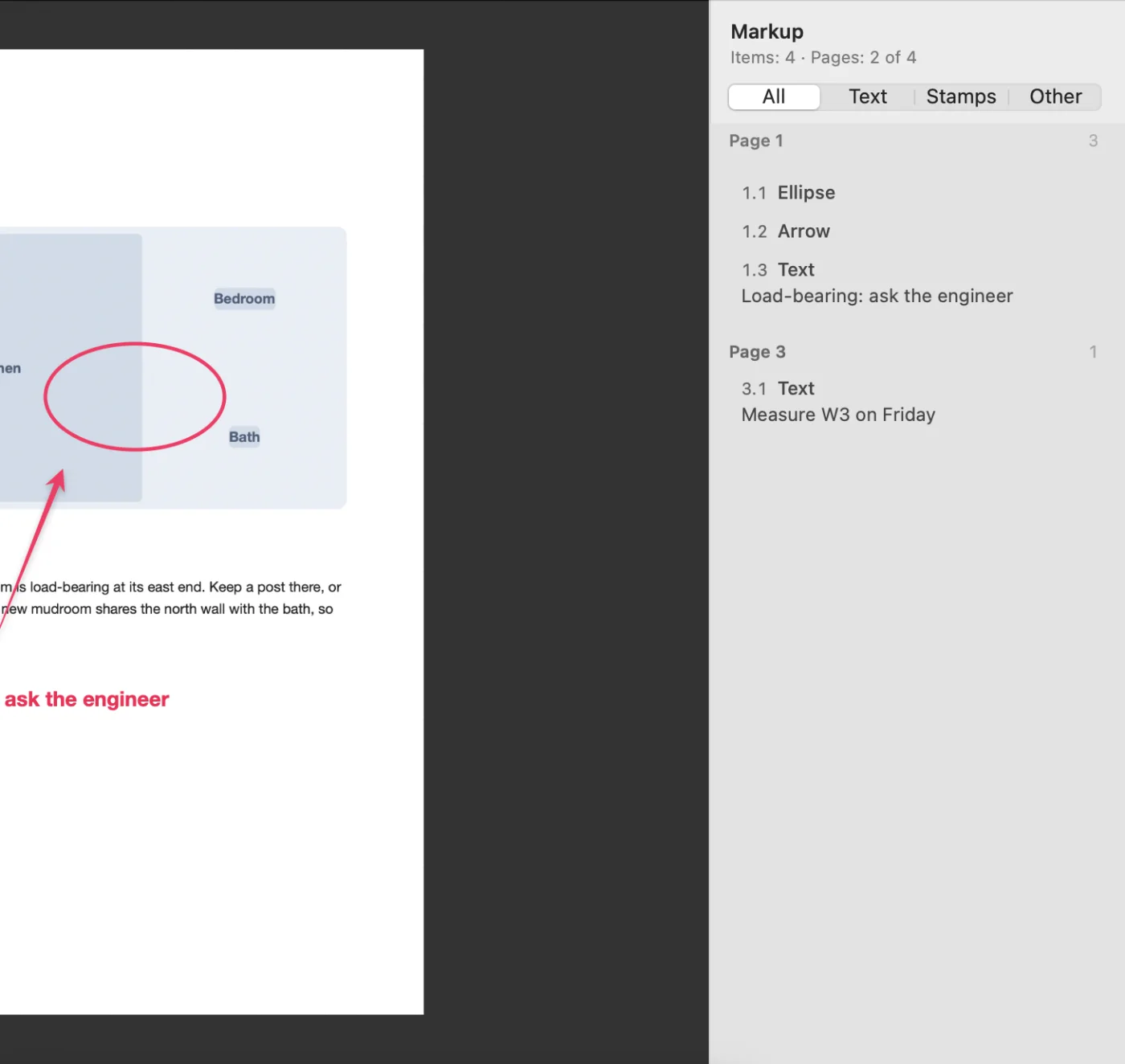
The list shows:
- A heading for each page that has markup, such as “Page 3”, with the number of entries on it.
- One entry per annotation, numbered from the top of the page down and then left to right. Each entry names its kind, such as Arrow, Rectangle or Question Stamp.
- Under text labels and labeled stamps, the text. Under covers, “Pixelated area”, “Frosted area” or “Covered area”.
- At the bottom, a count such as “Items: 12 · Pages: 4 of 20”.
Filter and jump
- Use All, Text, Stamps and Other at the top to show only one kind of markup. The count at the bottom adds how many are shown.
- Click an entry to go to its page. Snix selects the annotation and scrolls it into view.
- When you select an annotation on the canvas, the list highlights its entry.
The list updates as you edit. It also includes annotations that were already in the PDF when you opened it.
Text the page no longer shows
The list never reveals text that isn’t visible on the page:
- A label under a cover shows “Text under a mosaic or cover”.
- A label that a crop cut partly off the page shows “Text partly cropped off the page”.
Export a PDF with a summary
- Choose File › Export… (⌘E) and set Format to PDF (All Pages).
- Turn on Add a Markup Summary at the Start.
- Optionally, set Pages to Only Pages with Markup to leave out pages without annotations.
- Click Save.
The summary comes before the document’s pages. It lists every annotation, page by page, as searchable text. Click an entry in the summary to go to that annotation in the pages that follow.
Summary pages use the paper size set on your Mac: US Letter in the United States, A4 in most other places. The document pages keep their own size.
Good to know
- Only Pages with Markup also works without the summary, when you just want the annotated pages.
- If there is no markup at all, Snix can’t make a summary and asks you to add annotations first or export without one.
- The summary is made only for that export. It never becomes part of your document.
- Dragging the file icon out and sharing export every page, without a summary.
- More PDF export options: Work with PDFs.