
Hi-Res and Retina images
Understand how Snix keeps every Retina pixel, shows images at their real size, and exports files that look sharp in other apps.
⌘1
A Retina display has two or more pixels for every point you see. Snix always keeps every one of those pixels and records how many there are per point. There’s no 1× or 2× option to pick: everything is Hi-Res.
What Hi-Res means in Snix
- Captures keep full resolution. An area of 800 × 600 points on a 2× display becomes an image of 1600 × 1200 pixels.
- 100% means real size. At Actual Size (100%) (⌘1), a capture appears exactly as large as it was on screen, with one image pixel per display pixel.
- Exports look right in other apps. Snix marks a 2× image as 144 dpi. Other apps then show it at its original size instead of twice as large and blurry.
- Markup is sized in points. A 6-point line or a 32-point label looks the same size on a Retina capture as on a regular one.
Where you see the size
- During a region capture, the size label shows both, for example “1280 × 720 px · 640 × 360 pt”. See Capture any part of your screen.
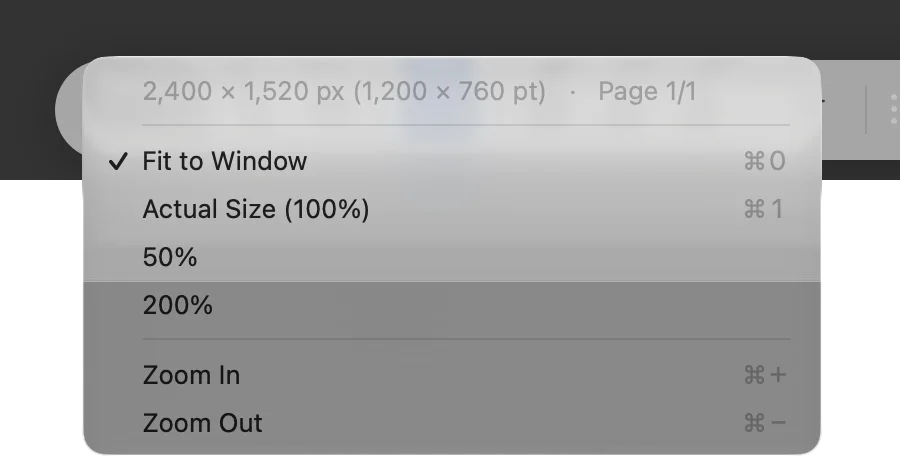
- In the editor, open the zoom menu on the bottom bar. Its first line shows the image size in pixels, the size in points when they differ, and the page number.
Images and PDFs you open
- Images: Snix reads the resolution stored in the file. Images at 72, 144 or 216 dpi open at 1×, 2× or 3×. Print resolutions such as 300 dpi open at 1×, so a photo keeps one pixel per point.
- PDFs: each page is shown at twice its point size, so it stays sharp when you zoom. Exported PDFs keep the original vector pages where they can. See Work with PDFs.
Exports and copies
Every way out of Snix keeps all the pixels and the resolution: export, Copy Image, dragging the file icon and sharing. PNG, JPEG, TIFF, GIF, BMP and HEIC record the dpi. When you export a PDF, a Hi-Res image becomes a page of its size in points with all its pixels inside.
Captures across displays
A region that spans displays with different pixel densities is combined into one image at the highest density among them, so no part is blurry.
Good to know
- Cropping, resizing, rotating, flipping and expanding the canvas keep the page’s scale.
- Resize Image… works in pixels and keeps the page’s scale.
- WebP files don’t record a resolution.