
Hide details with covers
Hide names, numbers and faces with a mosaic, frosted glass or a solid cover, and know which files leave the hidden content out.
⌥⌘X⌥⌘B⌥⌘E
Covers hide part of an image before you share it. Snix has three: a mosaic, frosted glass and a solid cover. A cover is more than a shape on top. In every image and PDF you export, the covered pixels are replaced, so the original can’t be recovered from the file.
Draw a cover
- Click the mosaic button in the sidebar. The sidebar slides over to show the three covers.
- Choose one:
- Pixelate (X): a mosaic of large blocks.
- Frosted Glass (B): a heavy blur with a light frost.
- Solid Cover (E): a block of the current color.
- Drag over the area to hide. Hold Shift for a square.
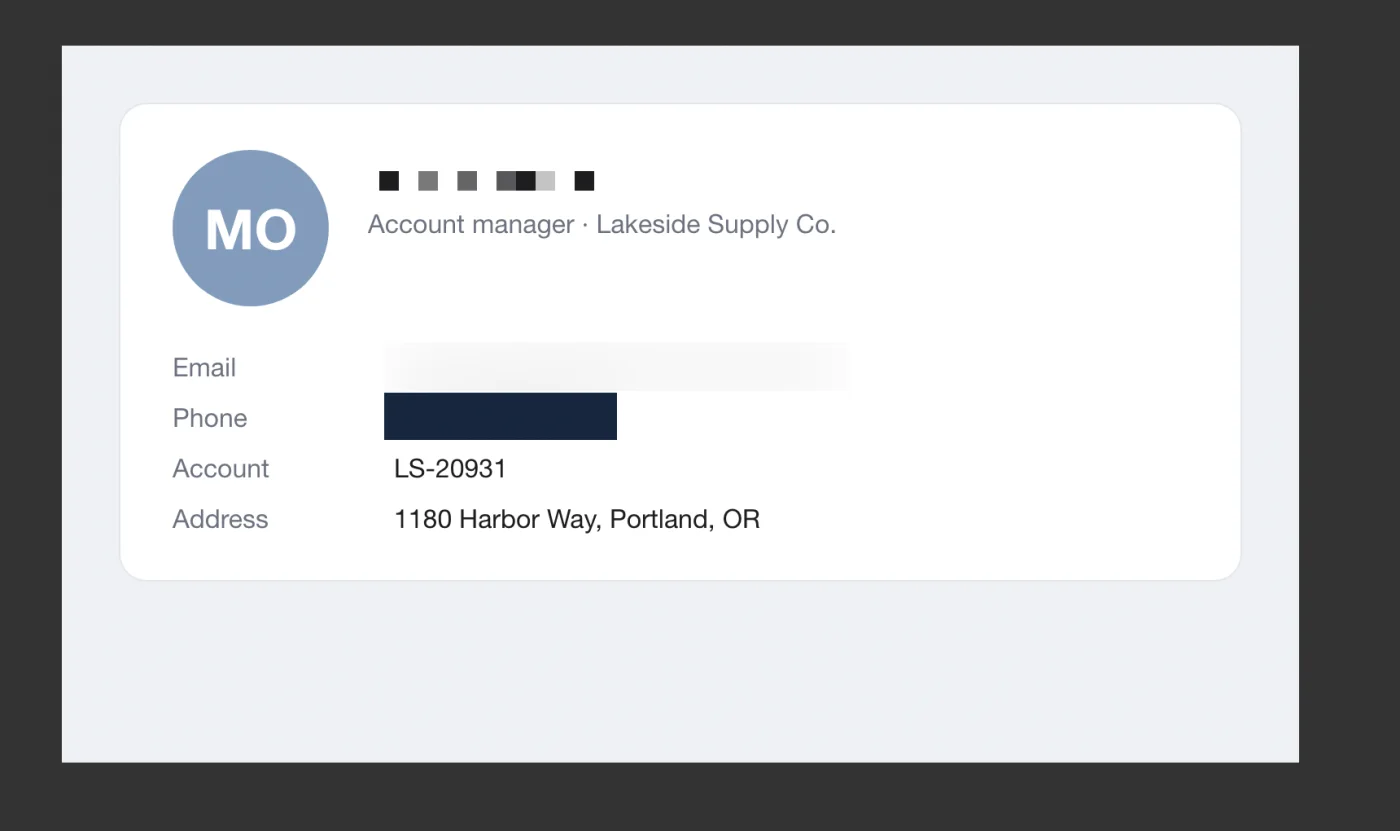
A cover is an annotation like any other. Select it with the Select tool to move it, resize it from its bottom-right corner, or delete it.
Choose the look
- Pixelate and Frosted Glass take their look from the image under them. The color doesn’t matter. At larger stroke widths, the mosaic blocks get bigger and the blur gets stronger.
- Solid Cover uses the current color and is always fully opaque, even if you pick a see-through color.
A cover hides the image and any markup drawn before it. Markup you draw after the cover stays on top of it, so you can put a label on a covered area.
What leaves Snix, and what doesn’t
- Image exports, Copy Image, drag-outs and shares are flat pictures. The original pixels under a cover aren’t in them.
- PDF export: a page with a cover is exported as an image, including the markup under the topmost cover. The page’s original text and vectors are left out, so the covered text can’t be selected, searched or uncovered. Markup above the topmost cover stays editable.
- A .snix project keeps your covers as editable annotations, so you can still move or remove them later. That also means the project file still contains the original image under them.
To share a covered image, always export it, copy it or drag it out. Don’t send the .snix project.
Covers and text
Text in the image that a cover hides can’t be selected or copied in Snix, even with text recognition on. A character counts as hidden once 40 percent of it is covered. In the markup list, a text label under a cover shows “Text under a mosaic or cover” instead of its words.
Good to know
- Covers on a PDF page change how that page exports. See Work with PDFs.
- Check the result before you share. Zoom to Actual Size (100%) with ⌘1 to see the cover as others will.
- More about projects: Save projects and use windows.