
Capture a window or the full screen
Capture a single window with clean transparent corners, or a whole display, including choosing one of several displays.
⌃⌘W⌃⌘6
Capture a window when you want just one app in the picture, without the desktop around it. Capture the full screen when the whole layout matters.
Capture a window
- Press ⌃⌘W, or choose Capture › Capture Window.
- Move the pointer over the window you want. Snix highlights it and shows its title with “Click to capture · Space for a region · Esc to cancel”.
- Click the window.
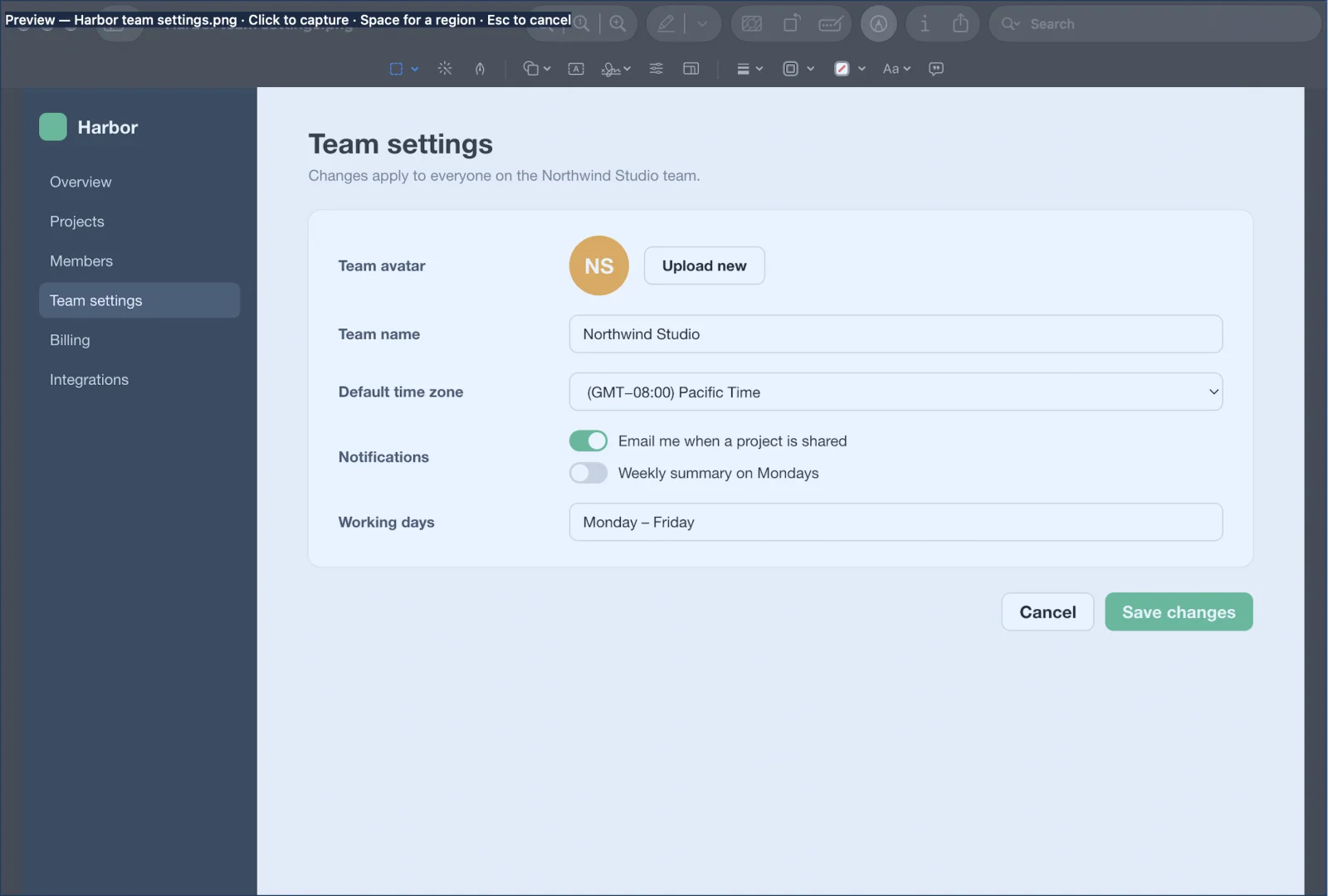
The window is captured on its own, with transparent rounded corners and no shadow. Other windows on top of it don’t appear in the image.
To switch to a region instead, press Space. From a region capture, press Space before you drag to come back to window selection. Press Esc to cancel.
Capture the full screen
Press ⌃⌘6, or choose Capture › Capture Full Screen.
- With one display, Snix captures it right away.
- With more than one display, Snix first asks which one. Each display shows its name and its size in pixels. The display under the pointer lights up with “Click to capture this display · Esc to cancel”. Click it to capture it.
Each display is captured at its own full resolution.
What’s left out
Snix hides its editor windows while it captures, and it leaves its own selection screens and countdown out of the image. Your capture shows only what you meant to capture.
Good to know
- If the window you clicked closes before the capture finishes, Snix shows “The selected window has closed or can’t be captured.” Try again.
- For an area of the screen, or a window plus its surroundings, use a region capture instead. See Capture any part of your screen.
- To capture an open menu, use the menu capture, which gives you time to open the menu first. See Capture menus and timed shots.
- After you take over the macOS keys, ⇧⌘3 captures the full screen and ⇧⌘4 then Space captures a window. See Use the macOS screenshot keys.