
Capture shortcuts and menus
Start any kind of capture from the keyboard, the Capture menu, the menu bar or the capture toolbar, and change the shortcuts.
⌃⌘5⌃⌘6⌃⌘W⌃⌥⌘5⌃⇧⌘5⌃⌘U
Snix has five kinds of capture: a region, the previous region, a window, the full screen and an open menu. You can start each one from several places. The global shortcuts work from any app, even when no Snix window is open, as long as Snix is running.
Default shortcuts
| Capture | Shortcut | Works from |
|---|---|---|
| Capture Region | ⌃⌘5 | Any app |
| Capture Full Screen | ⌃⌘6 | Any app |
| Capture Window | ⌃⌘W | Any app |
| Capture Previous Region | ⌃⌥⌘5 | Any app |
| Capture Region After Delay | ⌃⇧⌘5 | Any app |
| Capture Menu (Delayed) | ⌃⌘U | Any app |
| Capture Options | None until you set one | Any app |
The Capture menu always shows the shortcuts currently in use. The shortcuts for Capture Region After Delay and Capture Menu (Delayed) count down for the Delayed capture time, just like the Capture menu items.
Other places to start a capture
- Capture menu. Lists every capture, plus Capture Options…, Cancel Capture and Screen Recording Permission….
- Capture button. At the top of each editor window. Click it for a region capture, or click its arrow for the other captures.
- Menu bar icon. Offers Capture Region, Capture Previous Region, Capture Window, Capture Full Screen and Capture Menu (Delayed).
- Capture Options toolbar. A dark strip near the bottom of the screen, like the one macOS shows for ⇧⌘5.
Use the Capture Options toolbar
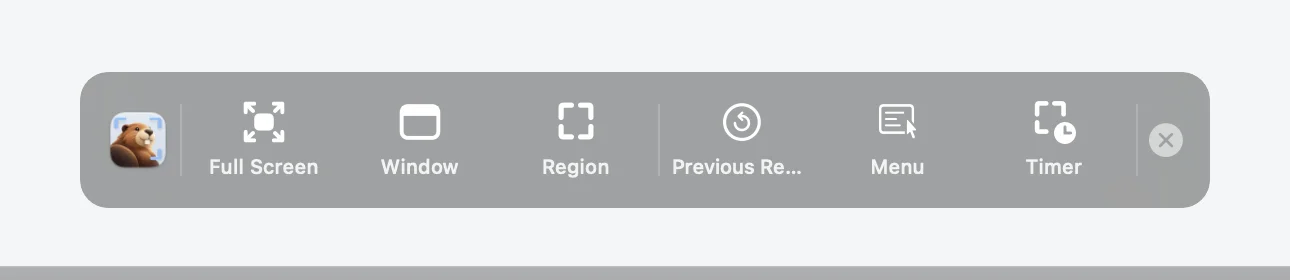
- Choose Capture › Capture Options…, or press the shortcut you set for it.
- Click Full Screen, Window, Region, Previous Region, Menu or Timer. The capture starts at once.
- To close the toolbar without capturing, click the close button at its right end, press Esc, or press its shortcut again.
Timer starts a region capture after a countdown. Menu starts a menu capture. See Capture menus and timed shots.
Change a shortcut
- Open Snix › Settings… (⌘,).
- Under Shortcuts, make sure Enable global capture shortcuts is on.
- Click the button next to Region, Full Screen, Window, Previous Region, Region After Delay, Menu (Delayed) or Capture Options. It reads “Type Shortcut”.
- Press the new combination. It must include ⌘, ⌃ or ⌥.
While a button reads “Type Shortcut”, press Esc to keep the old shortcut, or Delete to remove it. Restore Defaults puts back the shortcuts in the table above.
Snix checks each new shortcut:
- If another Snix capture already uses it, Snix offers to move it. Choose Use Here to take it.
- If it is also a macOS screenshot shortcut, Snix explains that both would start. Choose Open Keyboard Settings to turn off the macOS one, or Use Anyway.
- If another app already holds it, Snix keeps your old shortcut and asks you to choose another.
Turn global shortcuts off
Turn off Enable global capture shortcuts in Settings if the shortcuts clash with another app. You can still capture from the Capture menu, the Capture button and the menu bar icon.
Good to know
- Each successful capture opens in a new editor window, so earlier captures and their unsaved changes stay as they were. If the current window is empty, the capture uses it.
- Canceling a capture with Esc never creates a window.
- Only one capture runs at a time. Starting another while one is in progress just beeps.
- If you had already given ⌃⇧⌘5 or ⌃⌘U to another capture, that capture keeps it, and Region After Delay or Menu (Delayed) starts with no shortcut. Set one in Settings › Shortcuts.
- To use ⇧⌘3, ⇧⌘4 and ⇧⌘5 for Snix, see Use the macOS screenshot keys.