
Settings, menu bar and languages
Choose the interface language, the capture delay and shortcuts, and whether Snix stays in the menu bar or opens at login.
⌘,
Snix keeps its settings in one small window. Every change takes effect right away, except the language, which applies the next time Snix opens.
Open Settings
Choose Snix › Settings… (⌘,), or click the Snix icon in the menu bar and choose Settings….
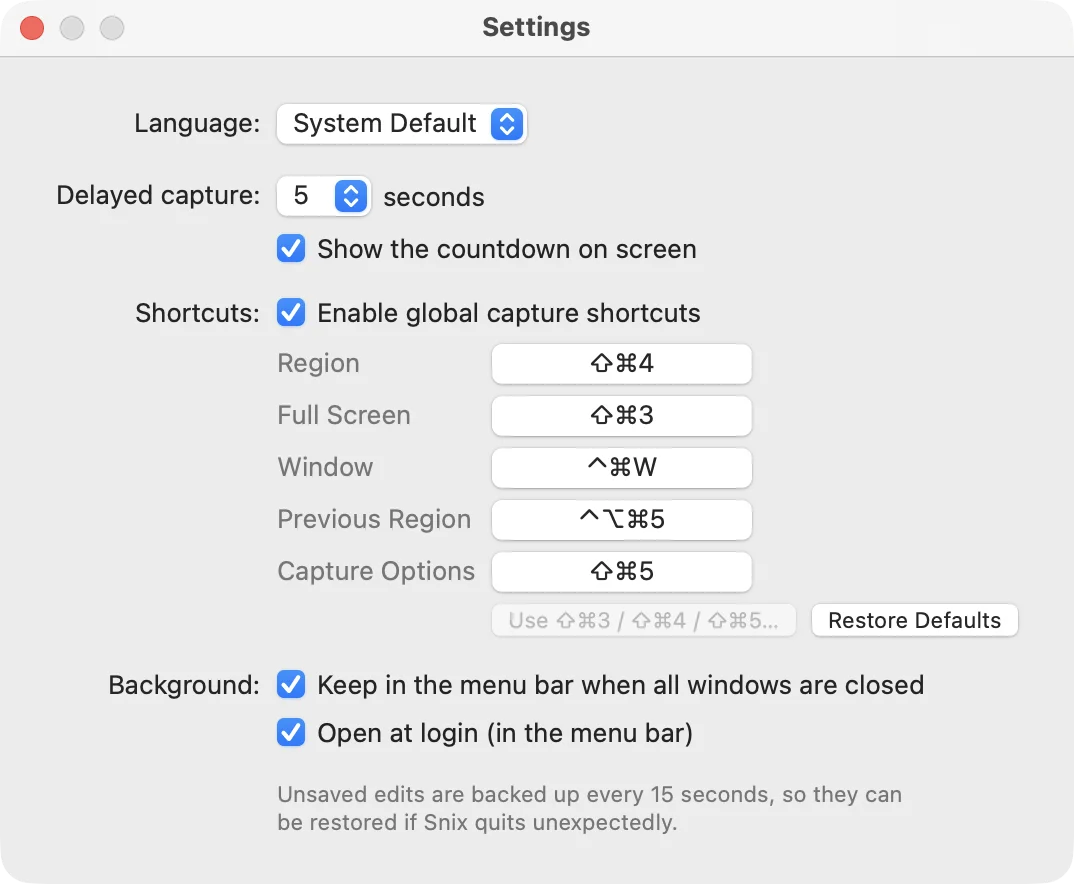
What’s in Settings
| Setting | What it does |
|---|---|
| Language | System Default, English, 简体中文 or 한국어 |
| Delayed capture | Countdown for delayed region and menu captures: 3, 5, 10 or 15 seconds. The default is 5. |
| Show the countdown on screen | Shows the countdown card in the middle of the screen. On by default. |
| Enable global capture shortcuts | Lets the capture shortcuts work from any app |
| Shortcut buttons | Region, Full Screen, Window, Previous Region, Region After Delay, Menu (Delayed) and Capture Options, with Use ⇧⌘3 / ⇧⌘4 / ⇧⌘5… and Restore Defaults |
| Keep in the menu bar when all windows are closed | Keeps Snix running in the menu bar, out of the Dock, when no window is open. On by default. |
| Open at login (in the menu bar) | Starts Snix in the menu bar when you log in. Off by default. |
The shortcuts are covered in Capture shortcuts and menus and Use the macOS screenshot keys. The countdown is covered in Capture menus and timed shots.
Change the language
- In Settings, choose a Language. Each language is listed in its own language, so it’s easy to find.
- Snix asks “Restart Snix to use the new language?”. Click Restart Now, or Later to switch the next time you open Snix.
If you restart, Snix first asks you to save any unsaved changes, as when you quit. System Default follows your macOS language order. Languages Snix doesn’t offer fall back to English.
Titles that Snix gave earlier documents, such as “Screenshot” with a date, keep the language they were created in.
Stay in the menu bar
The first time you close the last window, Snix asks “Keep Snix in the Menu Bar?”.
- Keep in Menu Bar: Snix leaves the Dock and keeps running. The capture shortcuts and the menu bar icon still work. You can also tick Open Snix when you log in to your Mac here.
- Quit Snix: Snix quits now and whenever its last window closes.
You can change your answer later with Keep in the menu bar when all windows are closed.
From the menu bar icon you can capture, choose Show Editor to open a window again, open Settings…, or Quit Snix.
Open at login
Turn on Open at login (in the menu bar). When you log in, Snix starts quietly in the menu bar without opening a window. A capture or Show Editor opens one.
This option needs Keep in the menu bar when all windows are closed. If macOS asks you to approve it, Snix shows “Allow Snix to Open at Login”. Click Open System Settings and turn on Snix in General › Login Items & Extensions.
Good to know
- Settings also notes that unsaved edits are backed up every 15 seconds. See Save projects and use windows.
- Choose Snix › About Snix to see the version and the third-party software notices.